
ADdes in a headset
On a Quest, through Link, the dream wraps all the way around you. Lie back and look anywhere. A dim nebula fills the rest, so there is never a black void.
Look around inside the dream sphere
This viewer needs JavaScript and WebGL. The text on this page says everything it would show.
Drag to look around, or focus the viewer and use the arrow keys. Space holds everything still.
This is a sketch in your browser, not the headset. It wraps this page’s small in-browser dream round you to show the idea. It is one flat picture, with no voyages or hallways in it. In the headset the real engine draws the dream on your graphics card and sends it to the Quest.
How to start VR on a Quest
ADdes reaches a Quest through Meta’s Link, over the Link cable or Air Link.
- Start Meta’s service In
services.mscfind Oculus VR Runtime Service, set its Startup type to Manual or Automatic, and Start it. Then open the Meta Quest Link app (C:\Program Files\Oculus\Support\oculus-client\OculusClient.exe). - Connect Connect the Quest with the Link cable (or Air Link) and enable Link in the headset.
- Start VR Choose Virtual Reality on the title screen (it says whether a headset answers), run
ADDES.exe --vr, or press V in ADdes at any time.
Press V again to leave VR. The PC window stays a control panel: its keys work while you wear the headset.
What the dream does around you
About a second after VR starts, the dream turns to face wherever you are looking, even lying down in bed, and then stays fixed in the room. Press O to re-aim it after you move.
- Flames have their heart ahead, and their wisps stream past you into a slow vortex behind.
- Silk (2D) attractors wrap around you like a shell.
- Orbit (3D) attractors are seen from inside, their ribbons arcing over and around you.
- Claude’s dream (C) is tuned for VR: its white-hot heart is ahead of you and its threads turn around you. Its caption floats below your gaze, then fades.
- Breathing, drift and orbiting are damped on the sphere, because there they move the whole world around you.
On the sphere a voyage is mono, without stereo depth yet: it flows toward wherever the dream was aimed, and you see its shapes approach by how they grow. The voyages, hallways and tunnels themselves are on the Journeys page.
Coalesce gathers the dream into a window ahead
Click the stick, use the bar, or press G on the PC. Over 7.5 s the dream gathers from all around you into a window ahead, about 63° wide and framed as on the desktop. Everything outside the frame fades, the backdrop stays, and the dream’s breathing and drift come back as on the desktop. Do it again and it flows back around you.
It is slow on purpose: at 7.5 s its fastest point moves at 28.1°/s, under the 30°/s that the eye follows smoothly.
The menu bar floats below your gaze
It is the same bar as on the desktop, with Slower, Faster, Coalesce, Face me and the sleep timer in place of the window’s buttons. It replaced the earlier dock.
The bar fades in when you use a controller and away about 5 s after you stop. A soft line runs from your hand to whatever you point at, and a light tick in the hand marks each button. When the sleep timer runs out in the headset, only the sound fades.

The Touch controllers
Everything common is on your dominant hand: the right by default, or the left if you choose Left-handed in the menu’s Headset section (then X and Y take the place of A and B).
| Control | Dominant hand (right) | Other hand (left) |
|---|---|---|
| Trigger | point and click (the menu bar, the menu); held while pointing at the dream, it turns the dream | point and click too |
| A / X | next dream (in the menu: click) | more like this |
| B / Y | menu: open / close | Claude’s dream |
| Stick click | coalesce: gather the dream in front of you, or let it surround you again | turn the dream to face you |
| Stick flick up / down | faster / slower (in the menu: scroll) | (in the menu: scroll) |
| Grip | hide / show the menu bar | none |
| Menu button | none | menu (if you have turned away, it brings the menu back in front of you) |
Clicks are forgiving: the pointer is smoothed, and a click lands where you were aiming just before the trigger pull moved your hand.
Every setting is in the headset too
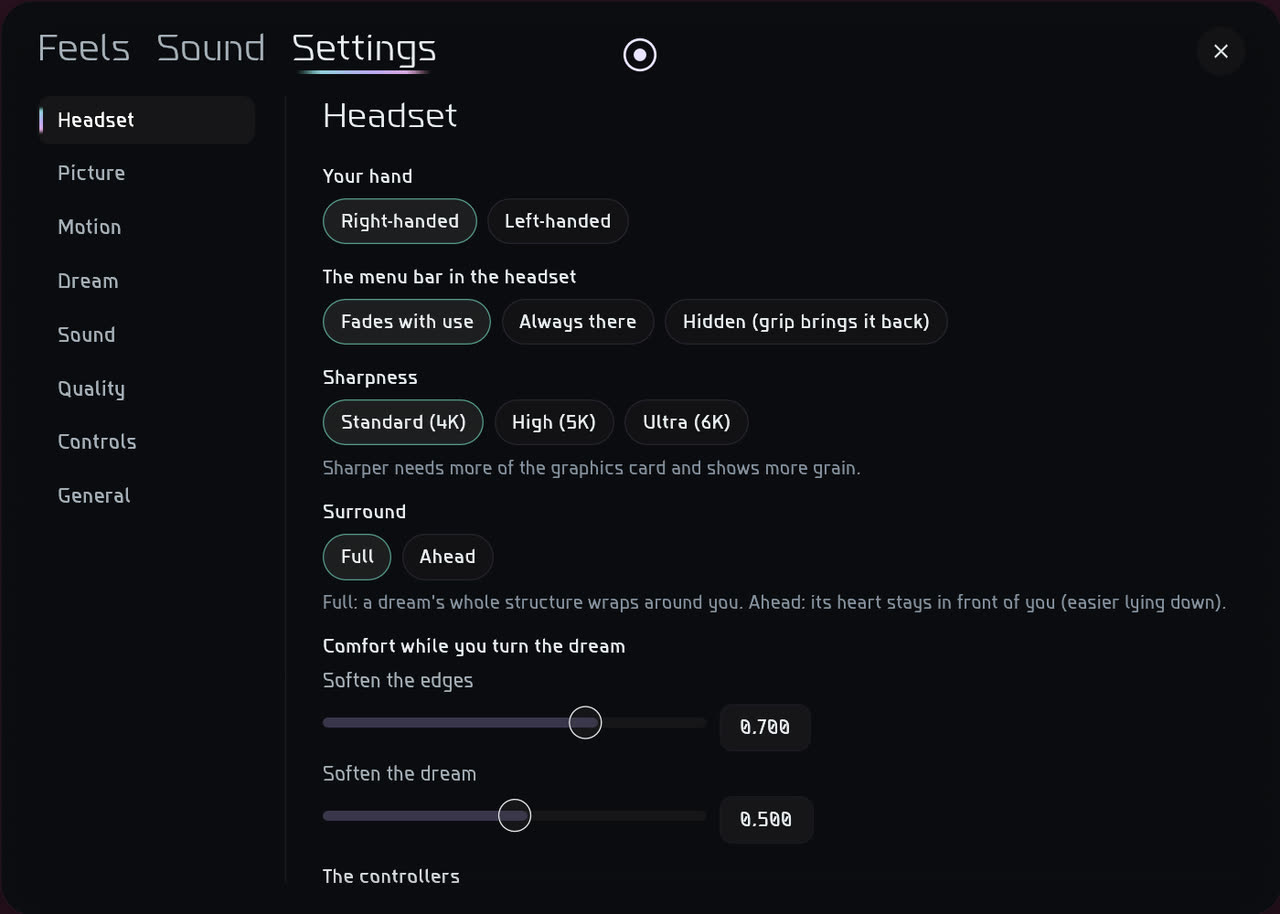
The menu is the same one as on the PC, plus a Headset section: your hand, whether the bar fades, is always there or is hidden, sharpness, surround, the ticks, and the controller map. Closing the menu saves your changes.
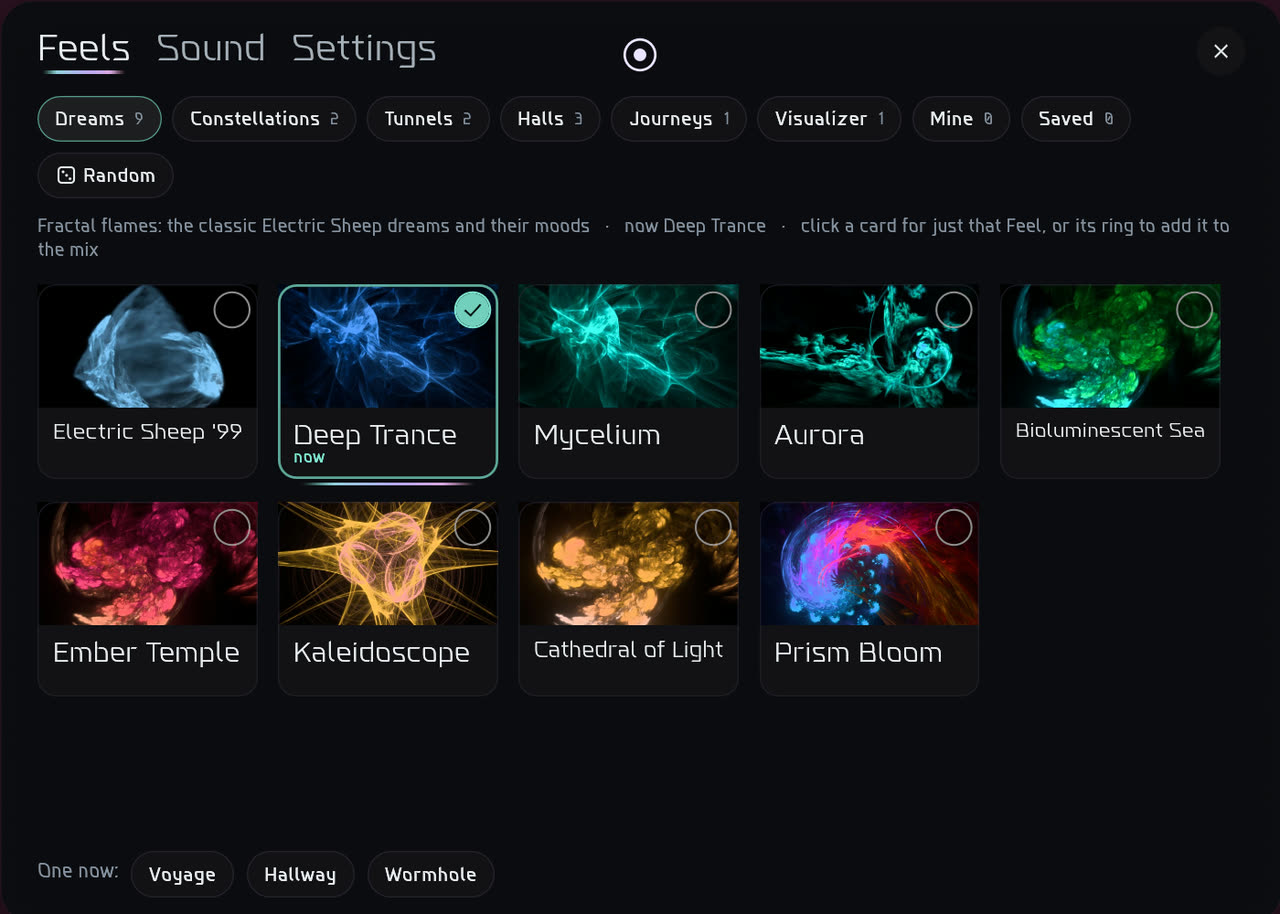
Feels
Feels opens drawers by kind, with each Feel shown as a picture ADdes rendered.
Sound
Sound is where you pick the soundtrack’s Audio Feel and switch Visualizer Mode on. The soundtrack itself is on the Sound page.
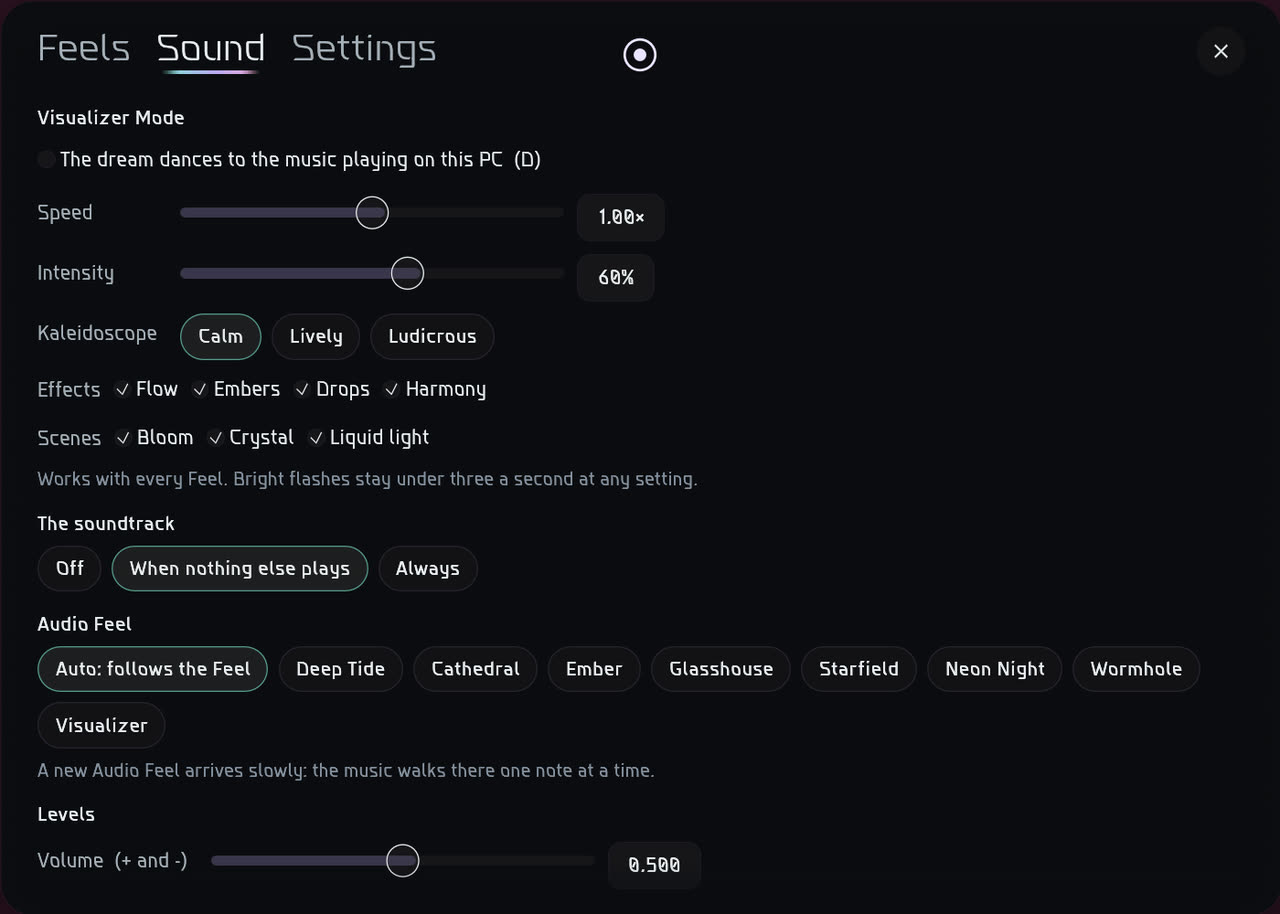
Visualizer Mode works in the headset
Press D on the PC, or use Sound in the menu, and the dream around you dances to the music playing on the PC. The scenes that the mode brings in at a drop stay off in the headset, because they have not been tested there. The rest of the mode works. Read about Visualizer Mode.
Being worked on
Three problems were reported in the headset. Each has a fix in the code that has not yet been checked in a headset.
- The bar could sit tilted. It is now placed level.
- There was no quit button in the headset. Quit is now on the headset’s bar, and takes two presses.
- Turning the dream with the trigger could be uncomfortable. It now has a speed cap and softened edges.
Start gentle: your body is the judge.
The settings file, HDR and the log
Your settings are saved to %LOCALAPPDATA%\ADDES\settings.json. Under vr, setting sphere to false gives the earlier curved screen, which has stereo depth for 3D dreams. sphere_k, sphere_k2d, sphere_motion and sphere_orbit tune the sphere, and sphere_px_per_deg sets its sharpness.
For HDR, turn on Settings, System, Display, Use HDR in Windows. ADdes detects it and outputs scRGB. On a TV, use its HGIG / game HDR mode.
Each session writes a log to %LOCALAPPDATA%\ADDES\addes.log (the previous one is addes.1.log).